Advertisements can appear on practically any part of your Android devices. However, your Google Chrome browser is the most vulnerable of all apps. Just like its desktop counterpart, Android Chrome is regularly exposed to many ads online from pop-ups to intrusive advertisements.
Fortunately, there are various ways that you can block on in Android Chrome. Here are a few:
Table of Contents
Install AdGuard for Android
AdGuard is a one-of-a-kind app that blocks ads everywhere on your mobile device. It stops ads in your browser, games, apps, and websites that you frequently use or visit. The app available on Play Store does not natively support Google Chrome. You can use it to block ads on Yandex and Samsung Internet browser only.

However, there is a workaround. There is another variant of AdGuard app available on the official website. You can download the APK from here.
To Proceed your Device must allow installing Apps from Unknown sources.
Tap the downloaded AdGuard APK file and then Install. If installations from a browser are not allowed, you’ll get a notification. In this notification, tap Settings → Allow from this source → Back → Install.
To block ads, AdGuard uses Local VPN for filtering out ads from Google Chrome browser. It does not use remote server but traffic routing is done on local device itself.
To do that, click on Create Local VPN and Press OK on the prompt pop-up.
You will need to enable HTTPS filtering for which certificate must be installed. On Dashboard, Tap on the orange block saying “Some Ads aren’t blocked”,
- Click on “Save Certificate”
- Open Settings
- Click on “CA Certificate”
- Install Anyway
- Select the ceritificate file named “adguard”
- You are done!
Fine Tune with DNS66
DNS66 is an excellent ad blocking app that allows blocking of hostnames via DNS. It does not require your mobile device to be rooted. The application reroutes your connection to a DNS server where it filters the traffic that only allows queries for hosts, not on the blacklist.
Download DNS66 on F-Droid which is a trusted app directory for free and open source Android programs. You have to allow your system to install apps from unknown sources. Go to Settings. Choose Security.
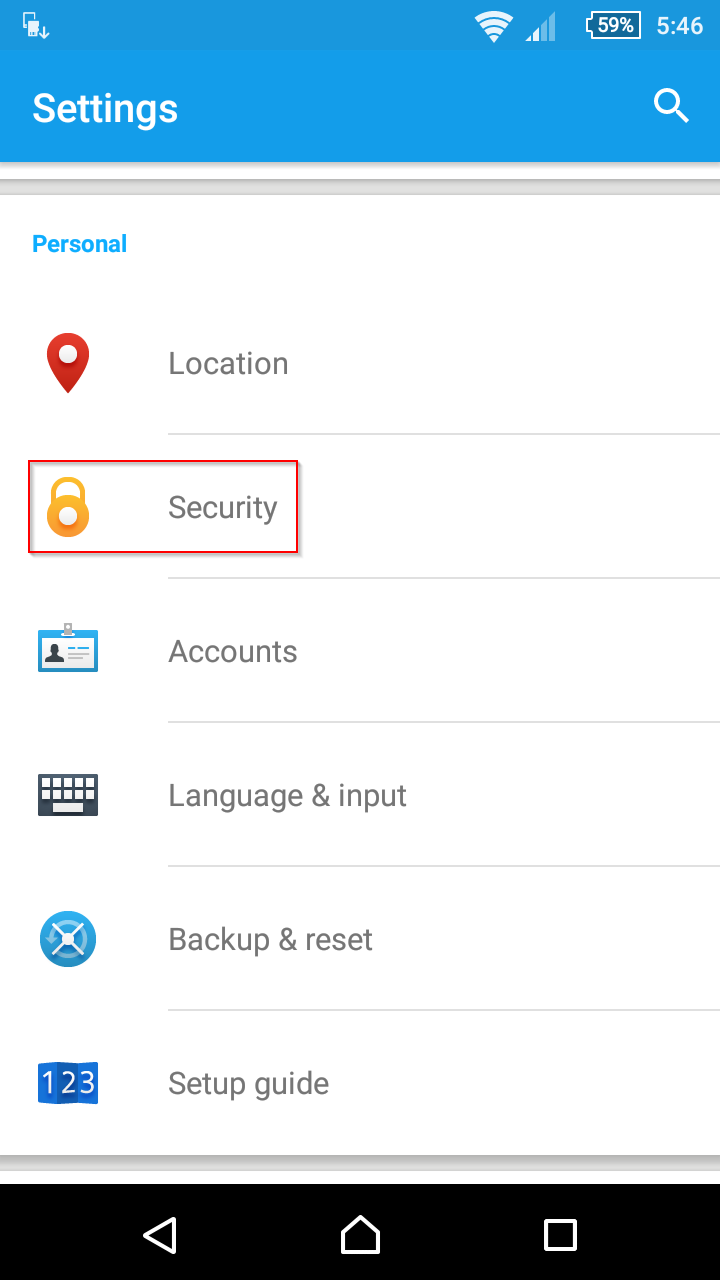
Turn on the dial for Unknown sources. If there is any confirmation pop-up window, choose OK.

Launch the DNS66 app. To start the VPN services, click the Start button on the first tab.

Choose Yes on the Missing hosts file pop up window.
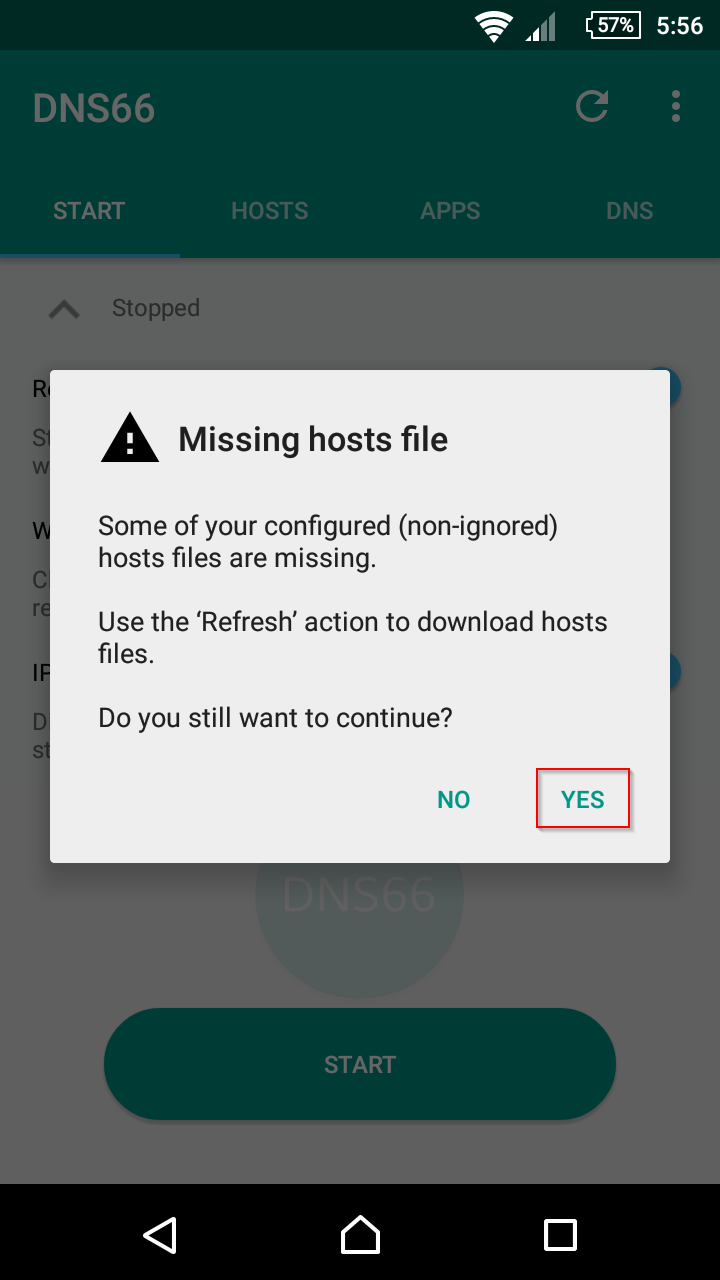
Them, choose OK on the Connection request pop-up notification.
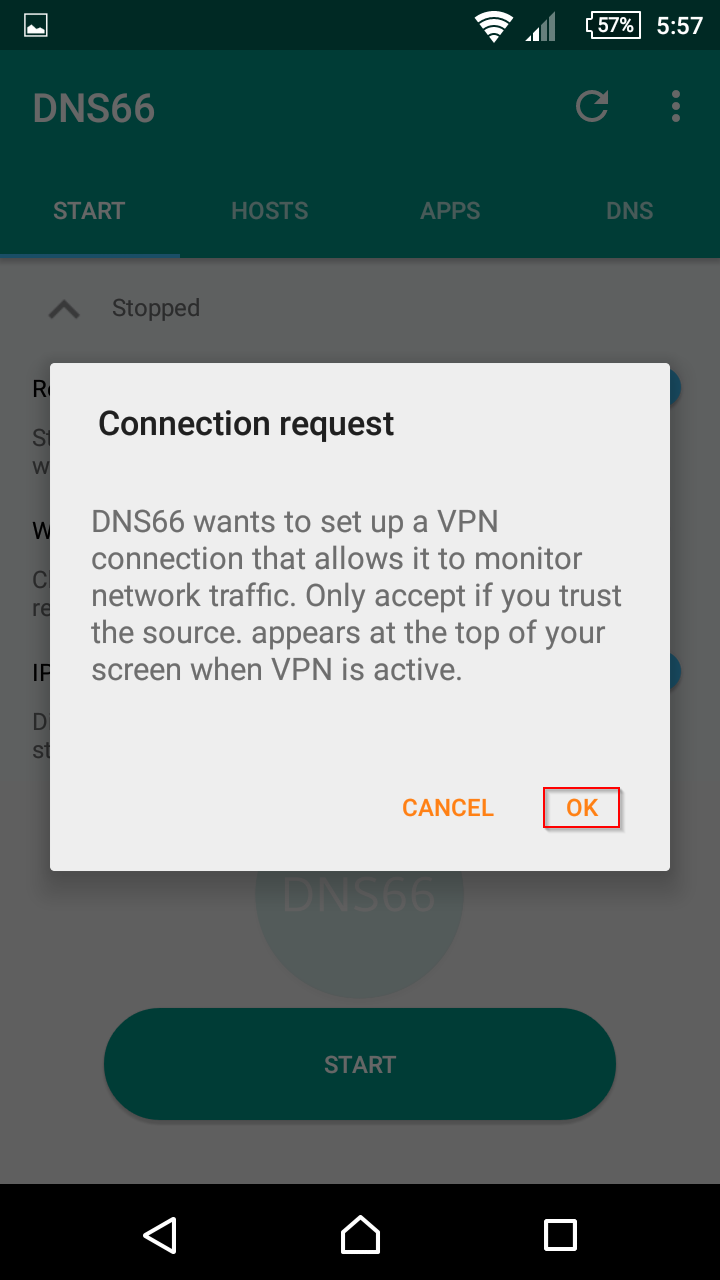
The Start tab should indicate that the VPN services is running.

Then, go to Hosts tab. By default, the application lists various host file sources with StevenBlack’s enabled. If you want to block ads from other host file sources, choose them from the list.

Then, choose Deny on the dropdown list on the next page. Touch the check logo on the upper right corner to confirm.
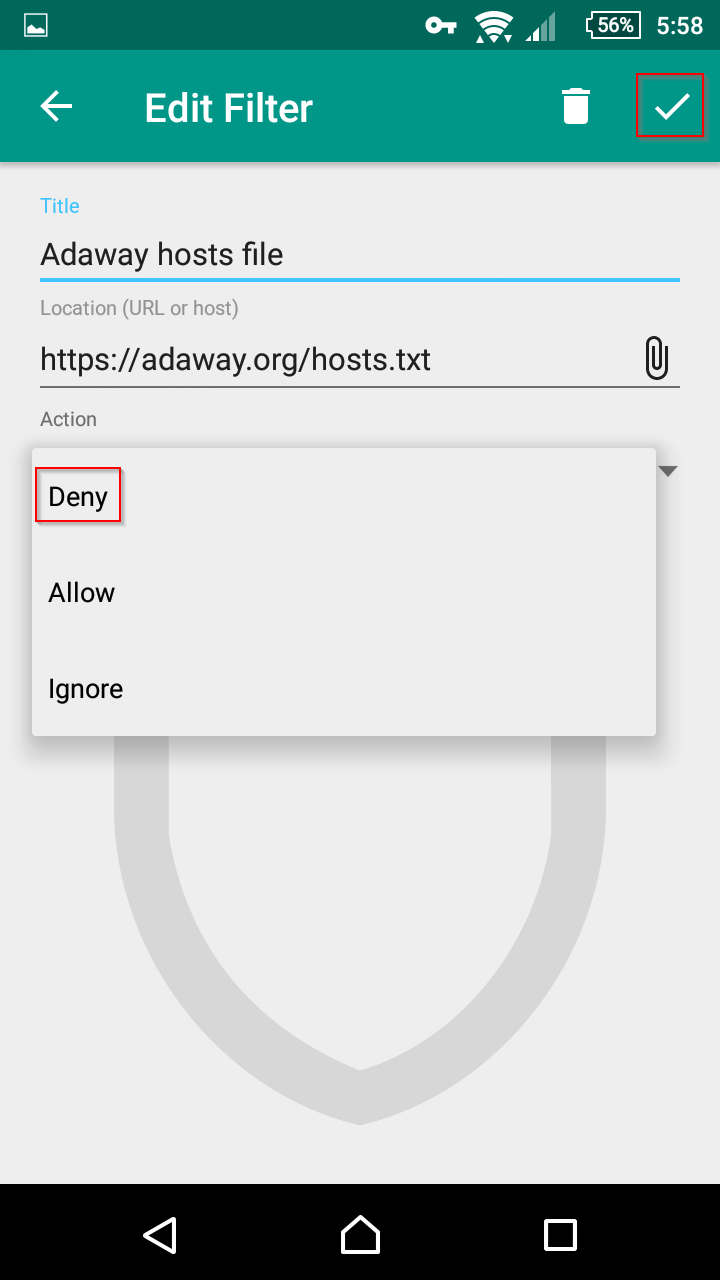
If you want to add your own host file source, choose the blue plus button and follow the instructions.
Take Back Your Browser with Bromite
Bromite is a browser focused on enhanced privacy and ad blocking. It is based on Chromium, which is also the basis of the Google Chrome browser. The browser app makes web ad blocking a lot simpler by having the mechanism integrated into the browser itself.
Launch Bromite then open the triple-dot menu on the upper right corner. Check Enable AdBlock. If you want extra protection, you can uncheck Enable Javascript.

Install AdBlock Plus
AdBlock Plus offers an alternative outside Chromium-based browsers. It provides faster browsing by blocking ads natively. Moreover, it protects your data and privacy during browsing by blocking tracking mechanisms.
The browser does a good job of protecting you by default. However, you can add more layers of protection. Open the triple-dot menu, then select Settings.
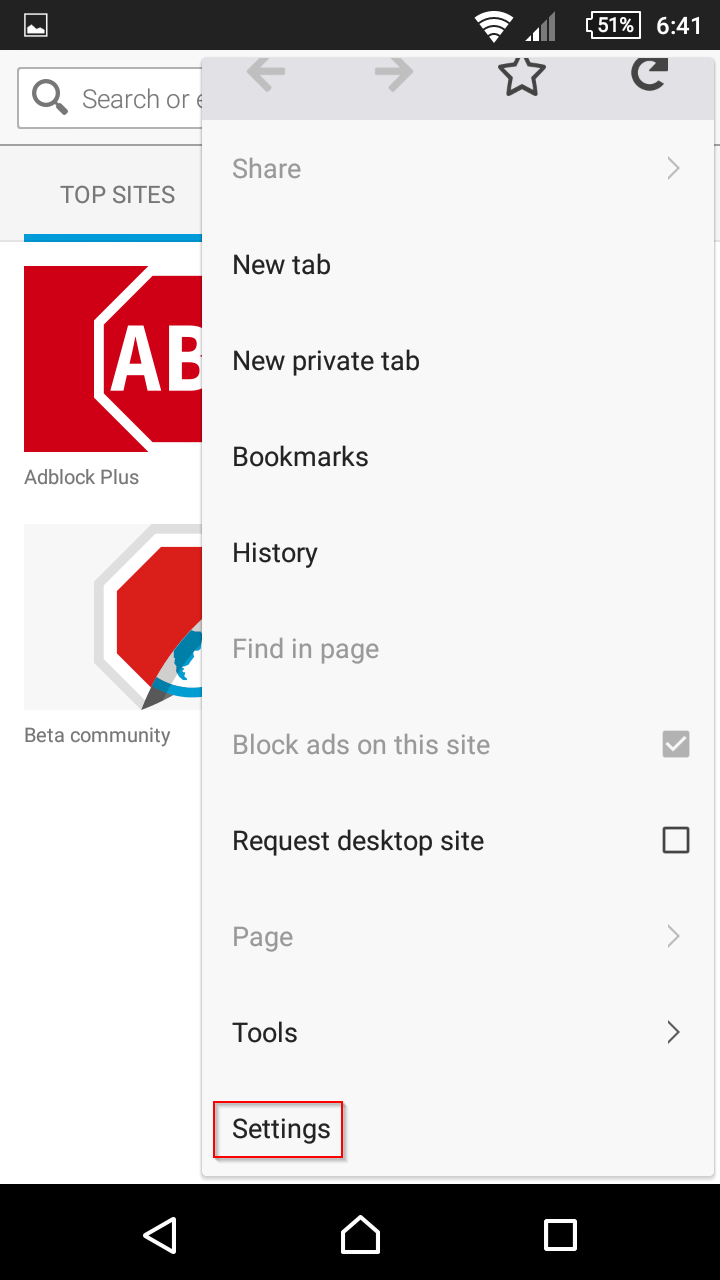
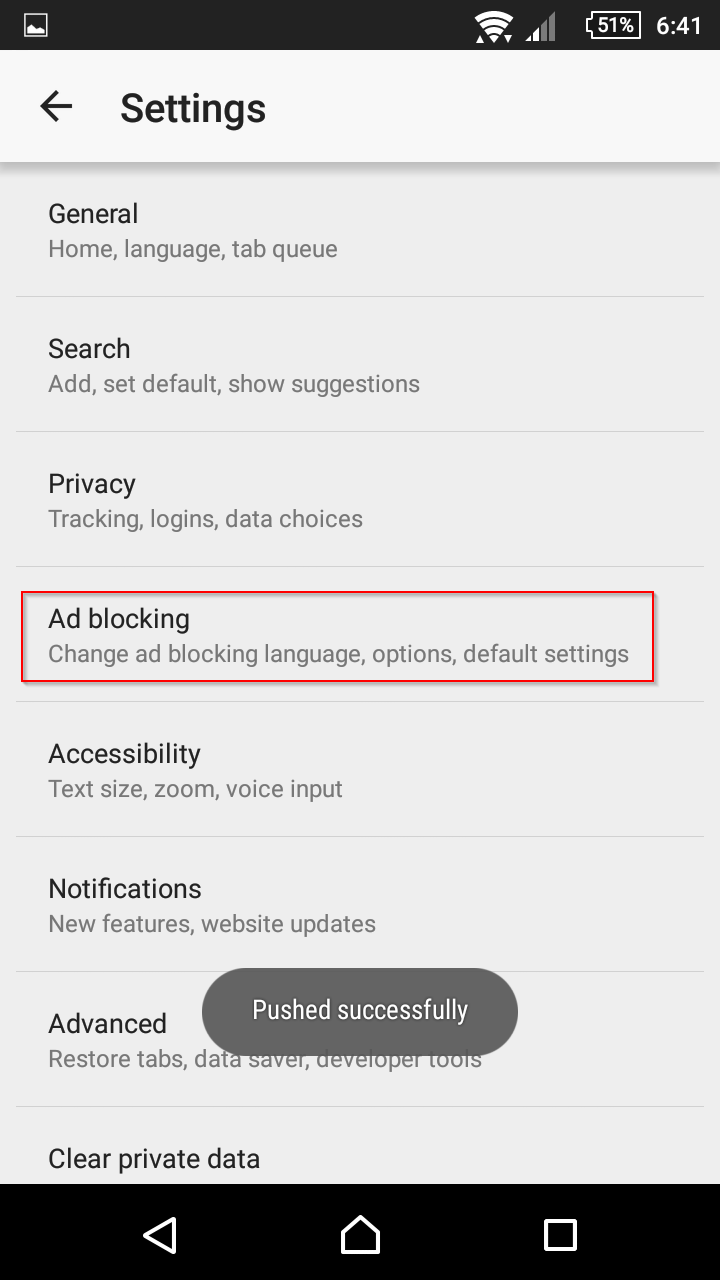
Under Settings, choose Ad blocking.
On the next page, choose More blocking options.
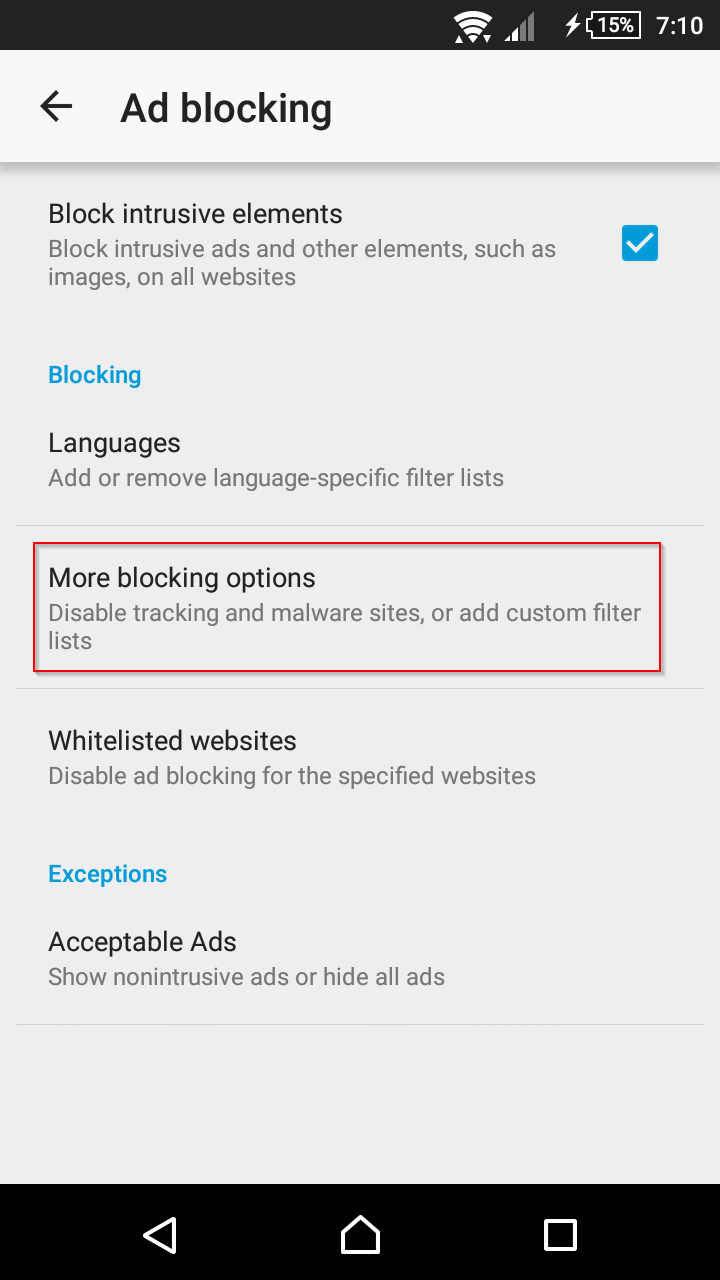
Check all four options under More blocking options. This will protect you from tracking, malware, anti-ad blocking messages, and social media buttons.

Install AdAway For Your Rooted Device
AdAway is one of the best ad-blocking apps if your device is already rooted. It uses hosts files to block ads, so it protects your entire system. Moreover, it is lightweight enough to run on any mobile phones without consuming CPU power or memory. This is especially essential if you have an older phone.

It is open source and free which also allows you to select your own sources of hosts files. Additionally, you can fine-tune the blocked ads using Whitelist and Blacklist.
Final Thoughts
Avoiding annoying ads starts with clean browsing habits. Ensure that you are only visiting secure sites. Also, running an ad-blocking app and anti-malware protection will add layers of security in case any ads get through. Regularly schedule a full system scan as well to remove any hidden adware.
Nice PH bookmark there, guys
Bruh good catch
The first way in this article is backwards. Following those instructions disables the minimal ad blocking functionality that Chrome for Android has enabled by default.
It doesn’t block much (only ads known to Google to be “intrusive or misleading”) but it’s still probably better to leave it on than to disable it.
No, it’s *not* backwards. Leaving it on allows all ads. Turning it off blocks “intrusive and misleading ads.” Because it’s not intuitive, most probably leave it on, which Google surely likes.
Better to not use Chrome at all on Android. It barely blocks anything and redirects bypass it lickity split.
Your listing states Ad Blocker for android Chrome phones, but I can’t find anything that applies to that topic. I’ve downloaded Ad Blocker onto my Samsung android phone, but it’s not blocking the ads. The phone came with game apps and the constant ads are driving me nuts! Do you have any suggestions? FYI, I’m a disabled senior who relies on the games to keep mind occupied since I don’t care for daytime TV so I’d appreciate any help you can give me. Thank you in advance.
I use BlockThis. It blocks everything. https://block-this.en.uptodown.com/android
Adblock for chrome will not block ads for games. Period. Unless you are playing games on the chrome browser… then again, that built in blocker doesn’t work… at all… anyways.
Gracias x la ayuda. nos sera muy util…
Why just not use Firefox with adblock extension?
So many options, but without this one that lay on the top…
My God, ist’s so simple to hide ads with the original Chrome for Android: Change the DNS to Adguard and you are done (https://adguard-dns.io/?aid=29591)
Thx. It works pretty good
You are a life saver!
Me das tu consentimiento de comentarlo en mi sitio. Muchas gracias, Un saludo
AdGuard doesn’t also.
DNS66 didn’t help either
Brave browser, you can make the interface identical to Chrome, and underneath its engine is Chromium. So you have a chrome like browser without any ads.