Adware Removal Tool
Remove Adware in Minutes. Keep It Gone Forever.
MalwareFox scans your PC, removes every trace of adware, and blocks new
adware before it reaches your browser. Lightweight. No bloat. Free to try.
What Is Adware — and Why Should You Care?
Adware is software that displays unwanted advertisements on your computer — pop-ups, banner ads, browser redirects, and injected search results. It typically arrives bundled with free software downloads, browser extensions, or through deceptive “Download” buttons on websites.
Not all adware is equally dangerous, but none of it belongs on your PC:
- Ad-supported freeware — shows ads as a trade-off for free software. Annoying but relatively harmless.
- Potentially Unwanted Programs (PUPs) — toolbars, browser hijackers, and search redirectors that change your settings without clear consent.
- Malicious adware — tracks your browsing history, harvests personal data, and sells it to third parties. Some variants open backdoors for more serious malware.
Adware is the most common type of malware by volume. Even if it doesn’t steal your passwords, it slows your PC, clutters your browser, and erodes your privacy — silently, in the background, for as long as you let it.
How It Spreads
4 Ways Adware Gets Onto Your Computer
Knowing the entry points is the first step to staying safe.
Bundled Software Installers
Free PDF converters, media players, and download managers often bundle adware in unchecked installer checkboxes. Clicking ‘Next’ too fast is the most common way adware lands on a PC.
Fake Browser Extensions
Extensions promising ‘speed boosts,’ ‘free coupons,’ or ‘PDF viewers’ can be adware in disguise — gaining broad browser permissions through the Chrome Web Store or Firefox Add-ons directory.
Deceptive Download Buttons
Ad networks on free content sites place fake ‘Download’ buttons that install adware instead of the file you wanted. The real download link is usually smaller and less prominent on the page.
Malvertising
Compromised advertising networks inject malicious code into ads on otherwise legitimate websites. Simply viewing a page — without clicking — can trigger an adware install on unpatched browsers.
Is Your PC Infected?
6 Signs Your Computer Has Adware
Recognize any of these? Your PC may have adware.
Unexpected Pop-Up Ads
Ads appearing on your desktop or inside apps that normally don’t show ads — even when your browser is closed.
Browser Homepage Changed
Your default search engine or homepage was changed without your permission to an unfamiliar site.
New Toolbars or Extensions
Browser toolbars, extensions, or plugins you never installed have appeared out of nowhere.
Sluggish Performance
Your PC runs noticeably slower. Task Manager shows high CPU or memory usage from processes you don’t recognize.
Redirected Searches
Search results redirect through unfamiliar sites before reaching your destination, or show injected sponsored results.
Random Browser Tabs Opening
New tabs open by themselves to ad-filled websites, affiliate pages, or fake download portals.
Step-by-Step Removal Guide
How to Remove Adware from Windows Manually
These steps work for most adware on Windows 10 and 11. Follow them in order — skipping the startup check at the end is the most common reason adware keeps returning. Prefer to skip the manual process? MalwareFox handles all of this automatically in a single scan.
Uninstall the Adware Program
Many adware infections arrive as companion applications — free tools that bundle adware in their installer. Start by removing the host program.
- Open Start > Settings > Apps (Windows 11) or Control Panel > Programs and Features (Windows 10).
- Sort by Install Date — look for software installed around the time problems started.
- Watch for names like: Conduit, Web Companion, MySearchDial, iLivid, DownloadAdmin, or anything with “toolbar,” “search,” or “optimizer” that you don’t recognise.
- Right-click the suspect program and select Uninstall. Complete all uninstaller screens.
Kill Adware Processes in Task Manager
- Press Ctrl+Shift+Esc to open Task Manager.
- In the Processes tab, look for high CPU or RAM usage from processes with unfamiliar names.
- Right-click a suspicious process > Open File Location. If the file is in a
Temp,AppData\Local\Temp, orAppData\Roamingfolder — it’s likely adware. - Right-click > End Task on suspicious processes before proceeding.
Remove Adware Extensions from Chrome
- Type
chrome://extensionsin the address bar and press Enter. - Remove any extension you didn’t install, especially those with broad permissions (“Read and change all your data on all websites”).
- Go to
chrome://settings/searchEngines— remove any unfamiliar search engines set as default. - Go to Settings > On startup and remove any hijacked URLs.
Known adware extensions to look for: SearchProtect, SafeFinder, Trovi, Conduit apps, ShopperPro, Superfish.
Remove Adware Extensions from Firefox
- Type
about:addonsin the address bar and press Enter. - Click Extensions in the left panel and remove anything unrecognised.
- Click Plugins and disable unfamiliar plugins.
- Restore your homepage: go to
about:preferences#homeand reset to Firefox Home or your chosen URL. - Restore your search engine: go to
about:preferences#searchand switch back to Google or your preferred engine.
Remove Adware Extensions from Edge
- Type
edge://extensionsin the address bar and press Enter. - Toggle off, then click Remove on any extension you didn’t install.
- Reset your startup page: go to
edge://settings/startHomeNTPand remove hijacked URLs. - Restore your search engine: go to
edge://settings/searchEnginesand remove unrecognised entries.
Check Startup Programs
- Press Ctrl+Shift+Esc to open Task Manager.
- Click the Startup tab.
- Right-click and Disable any startup entry you don’t recognise — especially entries pointing to
AppDataorTempfolders.
Why Adware Keeps Coming Back After Manual Removal
Manual removal fails most often because adware doesn’t live in just one place. The program you uninstalled and the extension you removed are only the visible layer. Beneath them, adware may have:
- Written registry keys that reinstall the extension on every Windows startup
- Created a scheduled task that re-downloads and re-runs the adware installer
- Registered a Windows service that runs its process independently of the browser
- Added startup entries in locations manual Task Manager checks don’t show
- Google Sync re-pushing the extension — if Chrome Sync is enabled, a removed adware extension can silently re-appear on any signed-in device within minutes, pulled from your Google account’s sync data
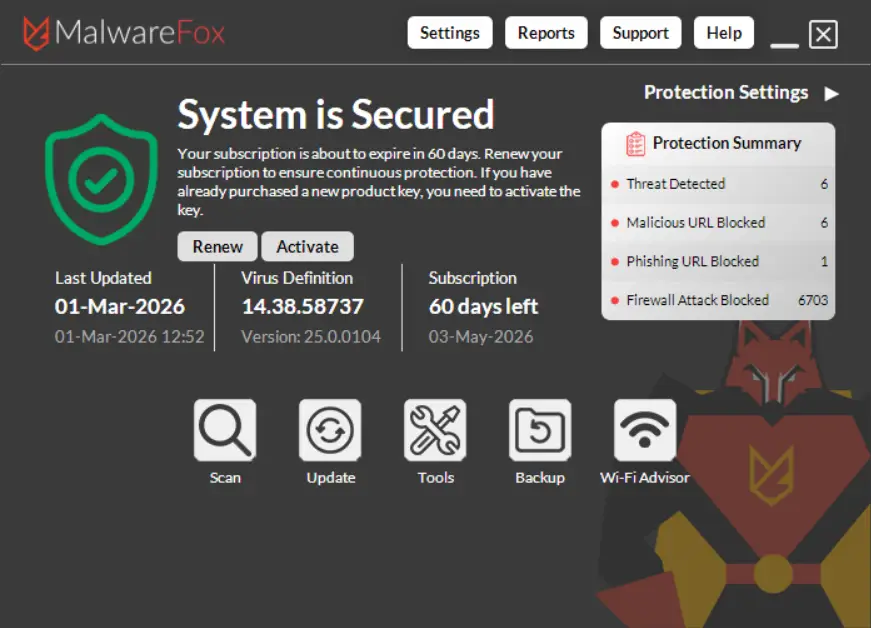
Hunting all of these manually takes 30–45 minutes and requires comfort with the Windows Registry. MalwareFox scans every one of these locations automatically — in under 90 seconds.
How It Works
Three Steps to an Adware-Free PC
No technical knowledge required. Download, scan, clean. That’s it.
Scan
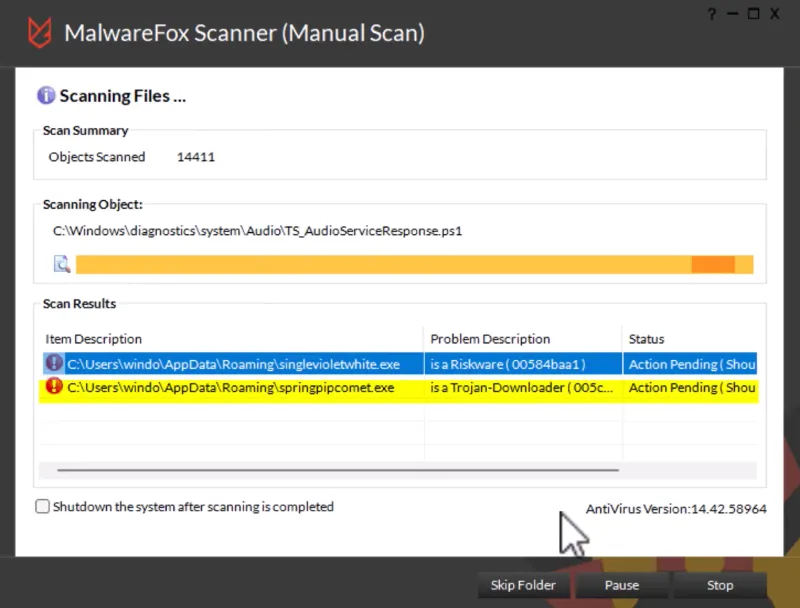
Download and run a deep scan. MalwareFox checks every process, browser extension, startup entry, and registry key for adware signatures and suspicious behavior.
Remove
One click removes all detected adware, PUPs, browser hijackers, and unwanted toolbars. No leftover files. No leftover registry entries. Clean slate.
Protect
Real-time protection blocks new adware before it installs. Browser cleanup restores your homepage and default search engine to what you chose.
Free scan · No credit card · Installs in 60 seconds
Stay Protected
5 Ways to Prevent Adware From Coming Back
Removal is step one. These habits keep it gone.
Always Choose Custom Install
When installing free software, always select “Custom” or “Advanced” installation instead of “Express” or “Recommended.” Review every checkbox on every screen — pre-ticked checkboxes are almost always adware opt-ins.
Vet Browser Extensions Before Installing
Check the extension’s publisher, review count, and permissions before installing. Any extension asking to “read and change all your data on all websites” warrants extra scrutiny — that level of access is rarely necessary.
Use an Ad Blocker on Risky Sites
Browser ad blockers prevent malvertising — adware delivered silently through compromised ad networks on otherwise legitimate sites. uBlock Origin is free, open-source, and trusted by millions.
Keep Windows and Browsers Updated
Drive-by adware installs exploit unpatched vulnerabilities in browsers and Windows. Enabling automatic updates closes these entry points within days of a patch being released — before most exploit campaigns begin.
Run MalwareFox Real-Time Protection
Real-time protection flags adware installers, suspicious extension installs, and bundled software before they complete. It monitors every install attempt silently in the background — using less than 50 MB of RAM.
Why MalwareFox
Dedicated Adware Removal vs. Bloated Suites
Focused protection that doesn’t weigh down your PC.
| Feature | MalwareFox | Free Antivirus Suites | Premium Antivirus Suites |
|---|---|---|---|
| Adware Detection | ✓ | ✓ | ✓ |
| Browser Hijacker Removal | ✓ | Partial | Limited |
| PUP Detection | ✓ | ✓ | Partial |
| Real-Time Adware Blocking | ✓ | ✓ | ✓ |
| RAM Usage | < 50 MB | 200–400 MB | 300–500 MB |
| Upsell Pop-Ups & Add-Ons | None | Yes | Yes |
| Starting Price | $24/year | Free (limited) | $40–80/year |
What Users Say About MalwareFox
Real stories from real users who got rid of adware for good.
“A client brought me a laptop with a hijacked homepage, endless redirects, and pop-ups on every tab. MalwareFox found over a dozen adware items in one scan and cleaned the registry leftovers too. I now run it on every cleanup job.”
IT Technician
“My laptop was crawling after I installed a free PDF converter. Turns out it came bundled with adware. MalwareFox cleaned everything up and my laptop is fast again.”
College Student
“The scan took about two minutes and found adware hiding in three browser extensions I thought were legitimate. What impressed me most is that it also cleaned up the registry entries so they didn’t come back.”
Systems Administrator
“I appreciate that MalwareFox itself doesn’t nag me with popups or try to upsell me every 5 minutes. It quietly does its job. After years of annoying security software, this is refreshing.”
Freelance Writer
Adware Removal: Your Questions Answered
Everything you need to know about detecting, removing, and preventing adware.
What is adware and how does it get on my computer?
Adware sneaks onto your computer through four common routes: bundled with free software downloads (hidden in the “custom install” options you skip past), deceptive browser extensions that promise one thing and deliver ads, fake “Download” or “Update” buttons on websites, and occasionally through email attachments or compromised ads on otherwise legitimate sites. Once installed, it displays pop-ups, redirects your searches, and injects ads into web pages.
Is adware dangerous?
It ranges from annoying to genuinely harmful. At the mild end, adware just displays unwanted ads and slows your PC. At the serious end, it can hijack your browser, track every site you visit, harvest personal data like search queries and login pages, and sell that information to data brokers. Some adware variants also open backdoors that allow more dangerous malware to install itself. Even “harmless” adware degrades performance and invades your privacy — it doesn’t belong on your computer.
Can Windows Defender remove adware?
Windows Defender catches some adware, but it frequently misses Potentially Unwanted Programs (PUPs), browser hijackers, and ad-injecting extensions — the categories that make up the bulk of real-world adware infections. Microsoft’s default protection is designed as a broad-spectrum antivirus, not a dedicated adware cleaner. MalwareFox specializes in exactly the threats Defender overlooks and works alongside it without conflicts.
How do I remove adware from Chrome, Firefox, or Edge?
Manually, you’d need to: remove suspicious extensions, reset your homepage and default search engine, clear browser cache and cookies, and check for unwanted startup programs in Task Manager. That’s tedious and often incomplete — adware reinstalls itself from leftover registry entries or scheduled tasks. MalwareFox automates the entire process: it scans all installed browsers, removes adware extensions, restores hijacked settings, and cleans up the underlying system files so the adware can’t come back.
Will MalwareFox remove all types of adware?
Yes. MalwareFox detects and removes browser hijackers, PUPs, unwanted toolbars, ad-injectors, pop-up generators, search redirectors, and ad-supported software that bundles itself with free downloads. It also removes leftover registry entries and scheduled tasks that allow adware to reinstall after a manual cleanup.
Is MalwareFox free?
Yes — the on-demand scanner is free forever. Download it, scan your PC, and remove detected adware with no time limit and no credit card. For always-on real-time protection that blocks adware before it installs, you get a 15-day fully functional trial of premium (no credit card required). Premium starts at $24/year and is backed by a 60-day money-back guarantee — full refund, no questions asked.
Does MalwareFox slow down my PC?
No. MalwareFox uses less than 50 MB of RAM and under 1% CPU during background protection. It’s designed to run silently — you’ll forget it’s there. In fact, removing adware with MalwareFox typically makes your PC noticeably faster, since adware processes are the ones eating your resources.
What’s the difference between adware and malware?
Adware is a subcategory of malware. “Malware” is the umbrella term for all malicious software — viruses, ransomware, spyware, trojans, and adware. Adware specifically focuses on displaying unwanted ads and monetizing your attention or data. While it’s generally less destructive than ransomware or a banking trojan, it’s by far the most common type of malware people encounter, and it often serves as a gateway for more serious infections.
Clean Your PC of Adware — Free
Free on-demand scanner · 15-day premium trial · 60-day money-back guarantee · No credit card required
On Android? Get it on Google Play