560,000 new pieces of malicious software are detected every single day (as per Statista). Yet most people use “malware” and “spyware” as if they mean the same thing. They don’t. The difference between malware and spyware is the difference between an umbrella category and one very specific threat hiding inside it.
Spyware is a type of malware, not a rival to it. Understanding that relationship isn’t just semantic. Different threats require different responses, and treating all malware the same leads to incomplete recovery.
What Is Malware? A Plain-English Guide to Every Type
Malware is the umbrella term for any software designed to damage, disrupt, or gain unauthorized access to a system. Think of it as the genus, not the species. Every specific threat you’ve heard of (viruses, ransomware, spyware) is a type of malware. Here’s a quick breakdown of the main types:
- Viruses: Attach themselves to legitimate files and spread when those files are opened or shared. They need a user action to activate.
- Worms: Self-propagate across networks without any user action. Once inside, they spread automatically.
- Ransomware: Encrypts your files and demands payment to restore access. You always know when you have it.
- Trojans: Disguise themselves as legitimate software. They don’t self-replicate, but they open the door for other attacks.
- Adware: Floods your device with unwanted ads. Some variants also harvest browsing data, which is where adware and spyware overlap.
- Rootkits: Embed deep in the operating system to evade detection. Hard to find, harder to remove.
- Spyware: Silently monitors your activity and transmits your data to attackers. More on this in a moment.
What Is Spyware and What Makes It Different from Other Malware
Spyware is malware designed to covertly monitor your device and collect data without your knowledge, then transmit that data to a third party. We’re talking about keystrokes, passwords, credit card numbers, banking credentials, browsing habits, and even screenshots. Everything you do on your device is a potential data source.
Spyware sits silently in the background, and that silence is exactly what makes it dangerous.
Spyware operates in three distinct stages:
- Infiltration: Gets onto your device silently, often via a malicious link, bundled software, or a fake app.
- Monitoring: Runs quietly in the background, capturing keystrokes, login credentials, browsing activity, and financial data.
- Transmission: Periodically sends the harvested data to an attacker-controlled server, encrypted to avoid detection by network monitoring tools.
There are four common types of spyware:
- Keyloggers: Record every keystroke. Your password is captured the moment you type it.
- Adware (tracking variant): Monitors your browsing to build a profile sold to advertisers or data brokers.
- Tracking cookies: Follow your activity across websites, building a detailed behavioral record.
- Trojans with data-harvesting payloads: Disguise as legitimate apps while silently collecting credentials and financial data.
Malware is any malicious software. Spyware is the silent-thief subset of malware. All spyware is malware. Not all malware is spyware.
| Malware | Spyware | |
|---|---|---|
| What it is | Umbrella term for all malicious software | A specific subset of malware |
| Goal | Varies: damage, extort, spy, disrupt | Covert surveillance and data theft |
| Visibility | Often noticeable (ransomware, viruses) | Designed to stay completely hidden |
| Self-replicates | Some types do (viruses, worms) | No |
| Examples | Ransomware, viruses, worms, trojans | Keyloggers, adware, tracking cookies |
According to SpyCloud’s 2025 Annual Identity Exposure Report, the average spyware-infected device in 2024 exposed 44 credentials and 1,861 cookies. One infection can unlock dozens of accounts across banking, email, social media, and work platforms. That’s not a hypothetical scenario. That’s the documented average.
How Spyware Gets onto Your Device
Vector 1: Phishing emails and messages. A convincing email, text, or social media message containing a malicious link or attachment. One click installs spyware silently in the background. Spyware is now also distributed via phishing links on Telegram and other messaging platforms, not just email. Traditional email-focused security awareness training leaves users blind to this delivery shift.
Vector 2: Bundled software (PUPs). You download a free PDF converter or game from a third-party site. During installation, you click “Next” through multiple screens. Buried in the terms is consent to install a “search toolbar” or “system optimizer.” These are spyware components. The installation is technically “agreed to,” which is why bundleware spyware is notoriously hard to prosecute and why reading custom install screens is not optional.
Vector 3: Drive-by downloads. Simply visiting a compromised website can trigger an automatic download exploit if your browser or plugins are unpatched. No clicking required. This is why keeping software updated isn’t optional hygiene, it’s your primary defense against this vector. The 22,800 phishing apps detected on Google Play in 2024 relied on permission vulnerabilities already patched in newer Android versions.
Vector 4: Fake apps. Android users are especially exposed. Over 22,800 phishing apps were detected on Google Play alone in 2024. Unofficial app stores are far worse. Fake utility apps, keyboard apps, and battery savers are common vectors. The permission they request (microphone, SMS, contacts, location) is the access they need to function as spyware.
One additional risk worth flagging: Triada malware has been found pre-installed on counterfeit Android devices before the consumer ever turns the phone on. Approximately 180,000 new Android malware packages appeared in Q1 2025 alone. If you bought a budget phone from an unofficial seller, it may have arrived already infected.
Warning Signs You May Have Spyware Right Now
- Device is noticeably slower than usual. Spyware consumes CPU and RAM running in the background around the clock.
- Battery drains faster than it used to. Constant background activity and data transmission drain battery at a higher rate.
- Unexplained spikes in mobile data usage. Transmitting stolen data to remote servers consumes data. Check your usage stats for unexplained jumps.
- New browser toolbars, extensions, or a changed homepage you didn’t set. Bundleware spyware often installs browser components as part of its payload.
- Frequent browser redirects to unfamiliar websites. Your searches or clicks are being intercepted and rerouted.
- Pop-up ads appearing even when your browser is closed. This points to adware-spyware hybrids or browser hijackers running independently.
- Device runs hot when idle. High CPU usage from background processes generates heat. A warm device doing “nothing” is worth investigating.
- Programs or apps you don’t recognize in your installed software list. Sort your installed apps by install date and look for anything that appeared in the last 30 days that you didn’t deliberately install.
- Camera or microphone indicator lights activating unexpectedly. Spyware with audio and video capture capabilities triggers these indicators during active collection.
A single symptom might be nothing. Multiple symptoms appearing at the same time are a stronger signal.
How to Remove Malware and Spyware?
Step 1: Switch over the PC to Safe mode
Safe mode is a special way to predict the system-critical problem, which interrupts the normal operation of Windows. So, safe mode is an alternate boot method that makes it easier to diagnose malware infection. There are minimum programs and services in Safe Mode
So, if any malware started to load automatically into your PC, it will remove the files which are not running or active. Let’s see the steps to switch over your PC to Safe Mode.
- For this, Login to your Windows PC and click the “start” button and tap the “Power” Hold on the Shift key, and select “Reboot”.
- From the full-screen menu, select “troubleshooting” and then “Advanced Options”, then opt for “Startup Settings”. So, once getting into the Startup Settings screen, tap the “restart” button from the list of settings options.
- Next, you’ll see the window with numbered options, which is hinted as “press a number to choose from the options below”. You can select number “4” (Enable Safe mode) to enter into the Safe Mode.
After entering into the Safe Mode, you may find that your system runs faster, and then this is all because of the malware infection. Still, if the malware persists in your PC, then follow the upcoming methods.
Step 2: Delete Temporary Files
The temporary files folder can also be a carrier of malicious files. You should delete all the temporary files and folders regularly for the smooth running of the system. Removing the temporary files would also clear the unnecessary clutter from your system and free up valuable space.
Remove Temporary Files from Windows 10
Here are the steps to eliminate the temporary files on Windows 10:
- Open the Run command window.
- Type %temp% and hit the enter key.

- This run command would navigate you to this path: C:\Users\[username]\AppData\Local\Temp, that is, the temp folder.
- Select all Files and Folders of this folder and delete them. Don’t hesitate to delete them, as they are not essential for any of your tasks.

- Next right-click on the Recycle Bin and select Empty Recycle Bin.

Remove Temporary Files from Windows 11
On Windows 11, it is easy to remove Temporary files. Here are the steps:
- Open Windows 11 Settings from the Start Menu.
- From the left pane, choose System settings and click on Storage from the right.
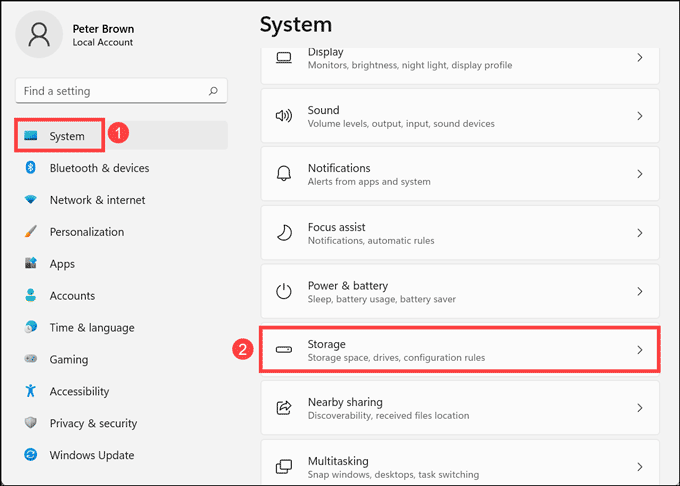
- Click on the Temporary files option.

- Tick all the boxes that you want to delete and click on Remove files.

Step 3: Uninstall Suspicious Applications
It is best to uninstall the suspicious applications, which you don’t remember installing, as they might be a potential malware program. Here are the steps to uninstall applications from Windows 10 and Windows 11.
Uninstall Suspicious Apps on Windows 10
- Right-click on the taskbar and select the Task Manager.

- Watch out for the applications that are consuming the system memory even though you did not install or launch them.
- Right-click on the suspicious application and open its file location.

- Delete the file from its root location.
- Open Control Panel and click on Uninstall a program and check for suspicious apps. One by one, select and uninstall them.

Uninstall Suspicious Apps on Windows 11
- Right-click on the Start button and select Task Manager from the list.

- Look out for the applications which are unnecessarily consuming the system resources without actively running.
- Right-click on such applications and open their file location.
- Delete all files from the targeted folder. Some files won’t be deleted as the application is still active.
- Open Control Panel and click on Uninstall a program.

- Check for suspicious apps. One by one, select and uninstall them.
Step 4: Remove System Restore Points
The system restore points can also have the potential to contain malware, so delete those to ensure that all the traces are removed from your PC. To be safe, you can remove all the restore points which are contracted to the malware.
- To do this, press the “Windows + pause break” keys to open the System window from the control panel and choose the “System protection”.

- From the System Properties window, select the drive whose system protection is located (Local Disk: C) and click “Configure” and “Ok”.

- Tap the “Delete” button to delete the restore points for your system. Now, the small confirmation dialog window will persist, click “continue” to remove all the restore points on the selected drive.
Step 5: Reset Web Browser Settings
Browsers are the Gateway for Malware. Malware will enter your system in many ways, but most browsers are the gateway to the web as well as the malware. There is definitely a risk involved when you download a file from unofficial websites or an attachment from an unsolicited email. Along with that, security vulnerabilities in the web browser programs themselves might sometimes lead to malware exploit.
It is best to reset the browser to its original state after a malware infection. Here are the ways to reset different web browsers.
Reset Google Chrome Browser
Here are the steps to reset the Google Chrome browser:
- Launch Google Chrome, click on three dots at the top right corner, and choose Settings from the menu.

- On the Settings page, click on the Advanced at the left pane.

- Under Advanced settings, click on Reset and clean up.

- Next, click on the Reset Settings button to finish resetting the Chrome Browser.

Reset Mozilla Firefox Browser
Follow these steps to reset the Mozilla Firefox:
- Open Mozilla Firefox, click on the menu button at the top right corner, and select Help.

- Under Firefox Help, choose More troubleshooting information.

- On the Troubleshooting Information page, click on the Refresh Firefox button under Give Firefox a tune up. This is on the right side of the page.

- On the warning pop-up, click on Refresh Firefox.

Reset Microsoft Edge Browser
On Microsoft Edge, follow these instructions to reset it:
- Launch Edge browser, click on three horizontal dots at top right corner, and select Settings from the menu.

- Under the settings page, click on Reset settings on the left pane.

- Click on Restore settings to their default value.

- Next, on the Restore settings pop-up, click on the Reset button.

Step 6: Install and Scan with an Anti-Malware
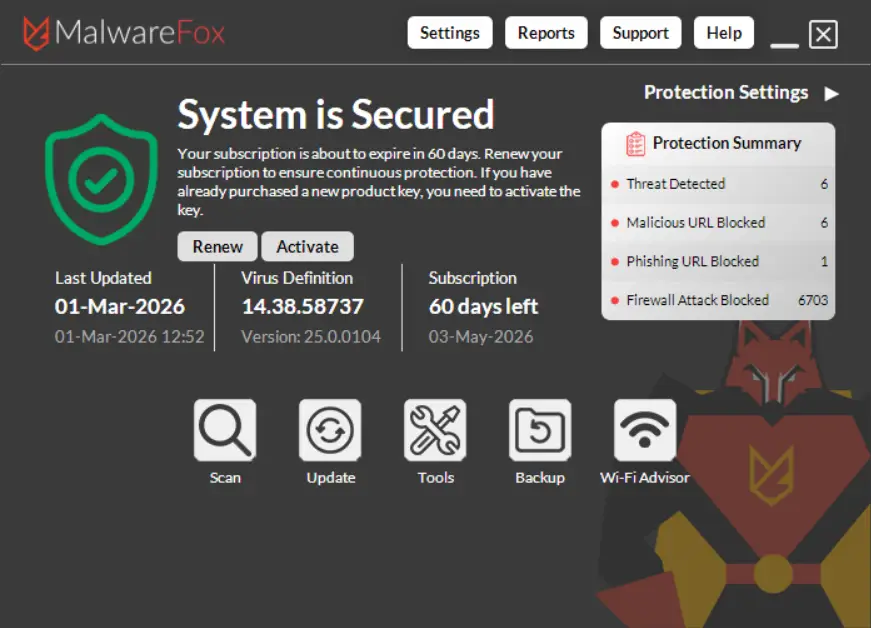
As of now, you’ve removed the unnecessary files to protect your PC from threats. Now, it’s time to run a deeper scan using anti-malware tool to get rid of the remnants. MalwareFox is built specifically for spyware detection and removal and handles this process automatically.
Android Removal Steps
- Go to Settings > Apps and review all installed apps. Remove anything unfamiliar.
- Check Settings > Security and confirm that “Install from unknown sources” is disabled.
- Review app permissions: revoke any that seem excessive for the app’s purpose (a flashlight app with microphone access is a red flag).
- If the infection persists: perform a factory reset after backing up your data. Reinstall apps only from the official Google Play Store. Do not restore from a backup, which may reintroduce the spyware.
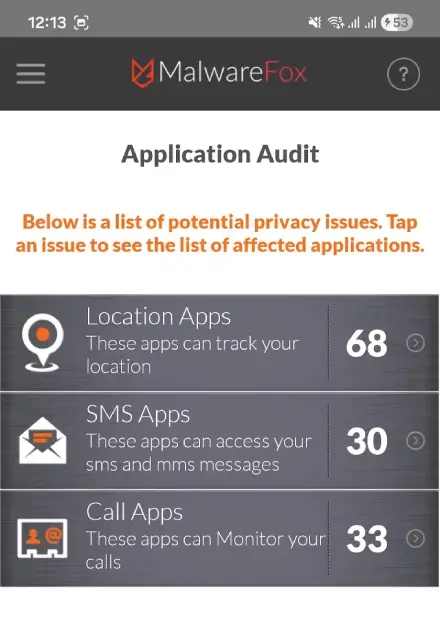
Uncover hidden threats with MalwareFox’s Application Audit. This module sorts your apps by permission level, giving you a clear view of which apps are overstepping their bounds and abusing your data.
Special case for Stalkerware: If you suspect a domestic abuser installed monitoring software on your device, contact the Coalition Against Stalkerware before removing it. In some situations, sudden removal alerts the abuser and can escalate danger.
Real-World Spyware Threats
Half of all online credit card fraud involves spyware-harvested data. SpyCloud’s 2025 research found 548 million malware-exfiltrated credentials and 17 billion stolen cookies in circulation from 2024 infections alone. These are documented losses, not projections.
Banking fraud via keyloggers. Keylogger spyware records your banking login credentials the moment you type them. Attackers access your account before you notice anything is wrong. The DarkHotel threat actor targeted C-suite executives traveling internationally by compromising hotel WiFi networks and silently installing keyloggers when targets connected. No suspicious link to click. No malicious attachment to open. Just connecting to the network was enough.
Stalkerware. A category of spyware sold commercially as “parental control” or “employee monitoring” tools, but frequently used by abusive partners to track location, read messages, and activate the microphone without consent. The Coalition Against Stalkerware found stalkerware on 31,000+ devices globally in a single year. Only 37% of surveyed people could identify what stalkerware is at all, which is exactly why it works.
State-level surveillance: Pegasus. NSO Group’s Pegasus spyware can be installed on iPhones via zero-click exploits, meaning no user interaction at all. Once installed, it accesses messages, calls, microphone, camera, and location. Developed for government use against journalists, activists, and officials, Pegasus represents the ceiling of what spyware technology is capable of. Most consumers will never be targeted by Pegasus. But it established that even a fully updated iPhone is not untouchable.
How to Prevent Spyware Infections
- Keep everything updated. Drive-by download exploits specifically target unpatched vulnerabilities. Turn on automatic updates for your operating system, browser, and all apps. Most spyware exploits vulnerabilities that updates have already fixed.
- Treat unexpected emails and messages as suspect. With 3.4 billion phishing emails sent daily, treat any unsolicited link or attachment as a potential threat. Navigate directly to websites by typing the URL rather than clicking embedded links.
- Use strong, unique passwords and enable two-factor authentication (2FA). If a keylogger captures your password, 2FA limits the damage significantly. A password manager makes unique passwords practical across dozens of accounts.
- Download software only from official sources. Avoid third-party download sites that bundle PUPs. During any software installation, choose “Custom” or “Advanced” install and uncheck any bundled software offers.
- Review app permissions before installing. A flashlight app requesting microphone, SMS, and contacts access is not doing what it says. Check permissions before you grant them.
- Use a VPN on public Wi-Fi. Unencrypted connections allow man-in-the-middle attacks that can deliver spyware. If you’re logging into anything sensitive on public Wi-Fi, use a VPN.
- Install a dedicated spyware removal tool and run regular scans. Real-time protection catches threats before they embed. MalwareFox runs proactive scans that catch spyware Windows Defender misses. Catching an infection early is the difference between a cleanup and a full credential compromise.
Spyware’s stealth makes it far easier to block at entry than to evict once embedded. These seven habits remove most of the footholds it depends on.
Spyware is a type of malware that hides on your computer, tracks your activities, and steals sensitive information such as credit card numbers and passwords.
Some common examples of spyware include keyloggers, screen capture software, and browser hijacking software.
If you notice your computer running slowly, unexpected pop-ups appearing, or strange activity happening on your account (such as unauthorized purchases), you may be infected with spyware.
A keylogger is a type of spyware that records everything you type on your keyboard, including passwords and credit card numbers. Keyloggers can be installed through email attachments, downloads from malicious websites, or drive-by downloads.